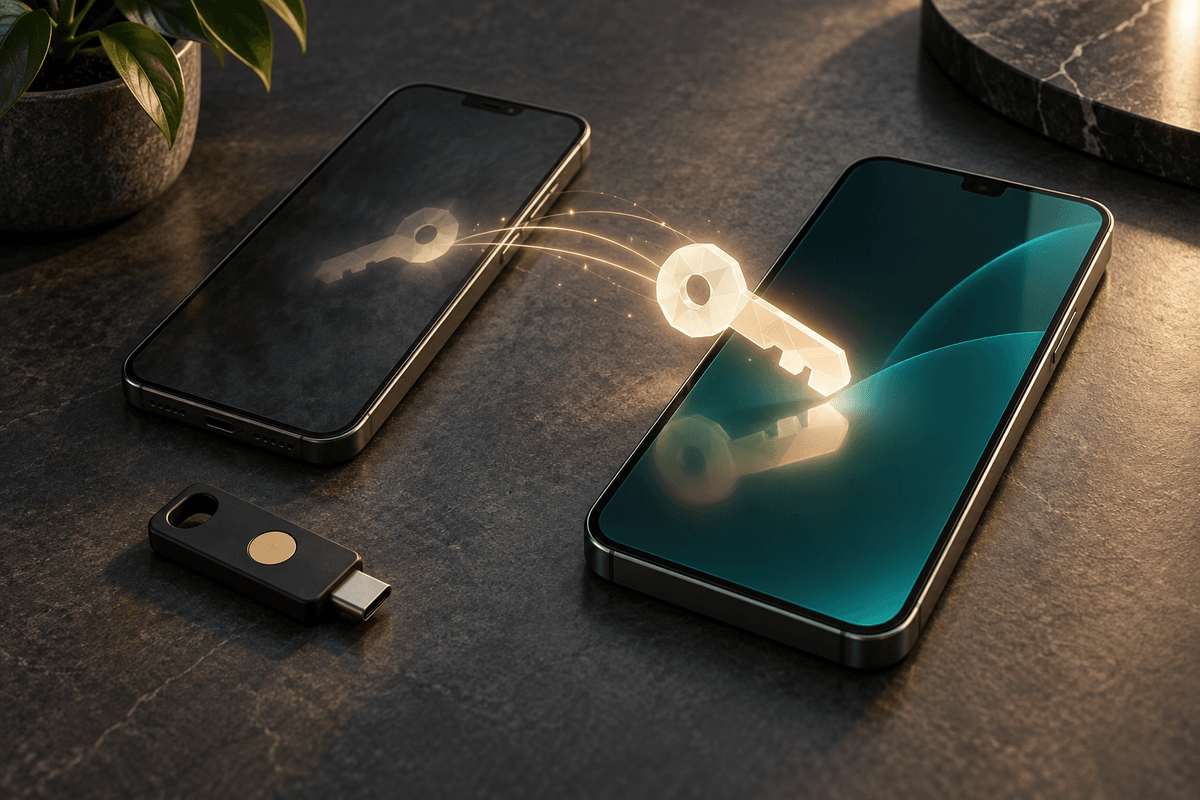
Changing phones with passkeys: check your recovery route before you erase the old device
A passkey can make sign-in easier, but changing devices still requires knowing where the credential lives and how to recover the account.
A phone replacement is a useful test of a passkey setup. Can the new phone sign in while the old one stays switched off? If the answer is unclear, keep the old device intact until you have checked the account and its recovery options.
A passkey is associated with an authenticator, which can be a device, a credential manager, or a compatible security key. Apple describes passkeys that synchronize through iCloud Keychain; Google also supports using a phone or a hardware security key for sign-in. The storage and recovery arrangement matters when the original device is unavailable.12
Use the checks below while the old phone still works. If it is already missing, start with the provider’s lost-device instructions and the recovery methods you previously configured.
Find out where the credential lives
The website account and the place holding its passkey are separate parts of the setup. Registering a passkey with a website does not tell you whether the private credential is available on another device. Check the credential manager you selected when you created it, then check whether its synchronization is enabled.13
On Apple devices, iCloud Keychain can make passwords and passkeys available on approved devices. Apple requires account authentication and approval when bringing devices into that arrangement. Simply owning another iPhone does not establish that it already has access to your credentials.3
For each important account, write down the provider that manages the passkey and the device or key you expect to use. Record the account name and recovery route separately from any secrets. You should be able to explain your setup without opening a settings screen on the phone you are about to trade in.
Separate the ways you might sign in
These are different arrangements, and they require different checks. The table describes documented capabilities rather than a guarantee that every website supports each option.1234
| Arrangement | Check before changing phones | What the check establishes |
|---|---|---|
| Passkey synchronized by a credential manager | Sign in on another approved device | That the other device can use the credential now |
| Passkey on a compatible hardware key | Complete a sign-in with that key | That the registered key is available and works |
| Phone used to approve a computer sign-in | Try the service’s cross-device flow | That the phone can authorize this particular sign-in |
| A separate recovery method | Review its requirements in the account settings | That an alternative route has been configured |
A successful phone-assisted sign-in on a laptop does not demonstrate that the laptop holds a synchronized credential. For Google’s documented cross-device flow, the computer displays a QR code and the phone authorizes the sign-in; Bluetooth is part of the requirements.1 Treat the phone as still necessary until a separate test shows otherwise.
Test the replacement before resetting the original
Start with your main email account and the account behind your credential manager. Those accounts may be involved in recovering other services, so a failure there can make subsequent recovery work harder. This is a dependency check: identify which account you would need to regain access to the next one.
Keep the original phone available while setting up the replacement. Confirm the new device is using the intended account and credential manager, and complete an ordinary sign-in to an important service. Then test another configured method with the old phone switched off. Do not reset the original merely because the new phone displays the same account name.
Avoid treating an already open website session as your test. A page that remains signed in tells you that its session is still valid. Use the service’s sign-in flow in a separate browser profile where appropriate, while preserving your existing session as a fallback. The objective is to observe the authentication route you will rely on after the device change.
A test should finish at the account you intended to access. A credential appearing in a list, a QR code appearing on a screen, or a confirmation prompt arriving on a phone is an intermediate step.
Keep recovery outside the device you might lose
Google says that adding a passkey does not remove existing authentication or recovery factors from the account.1 Review those settings deliberately. A recovery email address that you no longer control will not become useful merely because a passkey is configured.
Where an account offers backup codes, follow that service’s rules. Google’s backup codes are intended for the second step when the normal verification method is unavailable. Each code becomes inactive after use, and creating a replacement set invalidates the previous set.5 They should not be described as universal replacements for every part of a login.
Keep an authorized recovery method available without the phone you are preparing to replace. Depending on the service, that might mean access to another approved device, a registered security key, or securely stored recovery material. Google’s lost-phone documentation lists several possibilities and makes clear that the applicable route depends on what was configured.4
A spare key that has never been registered with the service is only spare hardware. A recovery code stored exclusively inside the account it is meant to recover creates another dependency. Check the actual registration and storage arrangements.
If the phone has already disappeared
Use the provider’s documented lost-device and account-recovery process. Google distinguishes removing a manually created passkey from signing out a device that registered a passkey automatically.1 Follow the instructions that match the account and credential involved rather than assuming a single action removes every route to access.
After you regain access, review registered devices and authentication methods. Recovery restores your ability to use the account; checking the lost device’s access is a separate task. Do not disclose recovery codes to a person claiming that they can retrieve a passkey for you. Google specifically warns against sharing backup codes.5
Before handing over the old phone, complete a sign-in on its replacement and check the recovery method you intend to keep. Review the old device’s credentials and sessions while you still have access. Then erase it using the device provider’s instructions.
References
Footnotes
-
Google Account Help — Passkey requirements, cross-device sign-in, existing recovery factors, and removing credentials: https://support.google.com/accounts/answer/13548313?hl=en ↩ ↩2 ↩3 ↩4 ↩5 ↩6
-
Apple Support — Public-key authentication and iCloud Keychain synchronization: https://support.apple.com/en-us/102195 ↩ ↩2
-
Apple Support — Enabling iCloud Keychain and approving devices: https://support.apple.com/en-us/109016 ↩ ↩2 ↩3
-
Google Account Help — Documented options after losing the primary phone: https://support.google.com/accounts/answer/185834?hl=en ↩ ↩2
-
Google Account Help — Backup-code purpose, storage, use, and replacement: https://support.google.com/accounts/answer/1187538?hl=en ↩ ↩2

Before you send a file link, check who can actually open it
Check link audience, editing rights, inherited folder access, and what remains after you stop sharing.

A USB-C cable charges your laptop but the monitor stays blank: what to check
Check the computer port, cable, display input, and dock separately before buying replacement hardware.

Before deleting cloud files, check what your backup can restore
Cloud synchronization, device backup, version history, and a separate archive solve different problems. Test the recovery path before relying on it.
Subscribe via RSS
Copy the feed address below and add it to your RSS reader.
Add this address to your RSS reader to receive new articles.