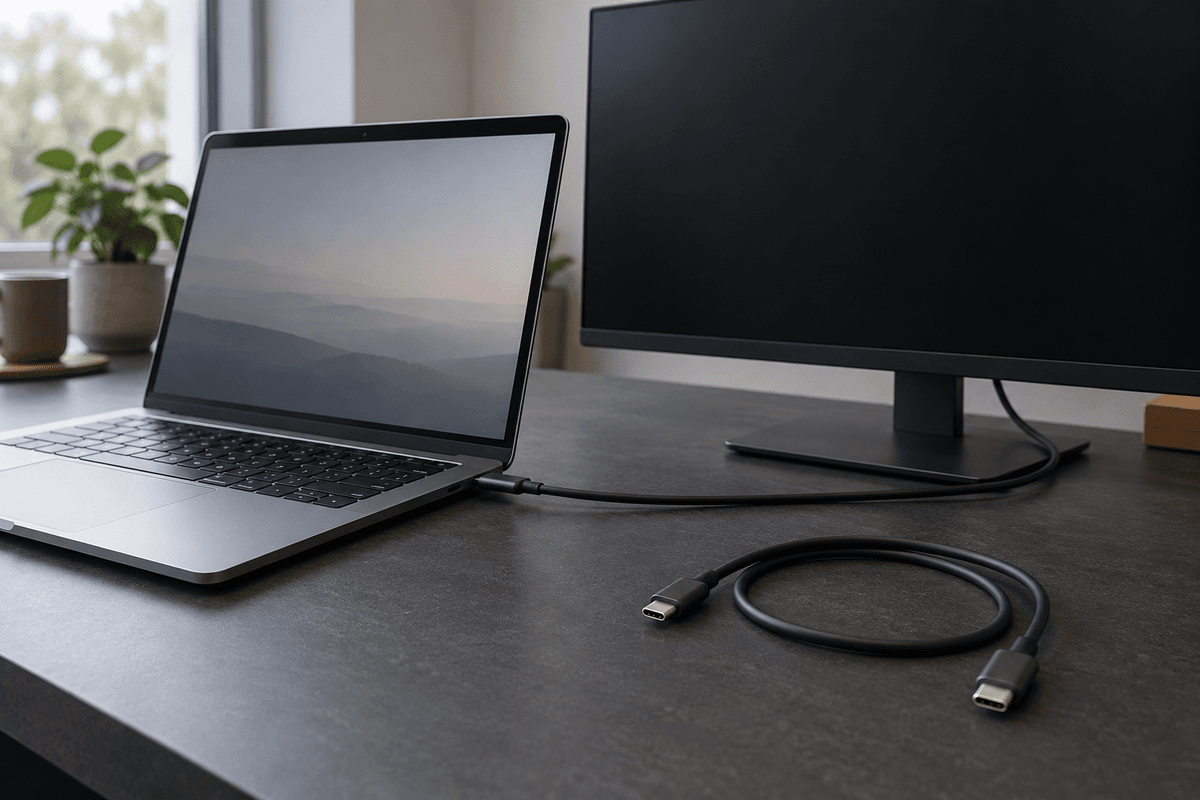
A USB-C cable charges your laptop but the monitor stays blank: what to check
Check the computer port, cable, display input, and dock separately before buying replacement hardware.
The laptop starts charging when you connect the monitor, but the screen stays blank. Charging has confirmed one part of the connection. It has not established that the port and cable can carry the display signal you need. USB-IF distinguishes the USB Type-C connector from the optional functions a product implements.1
Before buying another dock, identify the computer’s exact model, the port you used, the cable, and the display input. Work through that chain with one change at a time. Write down the exact error message and which device displayed it before changing the connection. The suggestions below are a troubleshooting method based on product documentation, not results from a hardware test bench.
Start with the computer’s port specification
Open the technical specifications for your computer model and locate the port used for the display. Read the supported functions rather than relying only on the connector’s shape. Apple’s port guide directs users to model-specific specifications and distinguishes the ports found on different Macs.2
Check the documentation for the particular physical port. A laptop may have several similar-looking connectors, so keep the location in your notes. Photographing the relevant side of your own computer can help you match the instructions to the socket without assuming every port has identical capabilities.
On Windows, Microsoft’s USB-C troubleshooting guide asks users to check compatibility among the computer, the connected device, and the cable. For display connections, the supported mode must line up across the connection.3 A charging indicator is useful evidence about charging, while the display specification answers a different question.
Identify the cable instead of guessing from its thickness
Look for a model number, packaging, receipt, or the product page for the cable you actually own. Find an explicit statement about video or the required connection standard. A cable’s appearance and a power rating do not describe the whole display path.
Apple gives a concrete example in its comparison of a Thunderbolt cable with a particular USB-C Charge Cable: the charge cable described there supports charging but does not support video.4 This is a statement about that documented cable, not a rule that every product sold as a charging cable has the same capabilities.
If you already have the cable supplied for the monitor’s display connection, use it for an initial check in accordance with the monitor manual. Label cables after you identify them. A short note saying which display setup worked is more useful than sorting a drawer into categories based on connector shape alone.
Check each part of the display path
The table organizes the compatibility questions raised by the USB-IF, Apple, and Microsoft documentation. The answer depends on the exact equipment and configuration.14532
| Part | What to find in the documentation | Useful observation |
|---|---|---|
| Computer port | Supported video connection and model limits | Which physical port you used |
| Cable | Explicit video support and compatible standard | The cable model, not just the plug shape |
| Display input | The input intended for video from this computer | Selected input and connected socket |
| Adapter or dock | Video support and limits for the intended setup | Whether a direct connection changes the result |
| Display settings | Supported resolution, refresh rate, and display count | Whether the requested setup is within the model’s limits |
Do not change all these parts at once. If the picture returns after replacing the cable and removing the dock together, you have a working arrangement but less information about which change mattered.
Try a direct connection before diagnosing the dock
Follow the display manufacturer’s instructions for power and input selection. Confirm the cable is seated at both ends and that you are using the monitor’s intended video input. A monitor with several sockets still needs the right connection for the job.
If the display is connected through a hub or dock, try an appropriate direct connection where your equipment supports one. Apple specifically recommends connecting a display directly to the Mac when investigating a connection through a hub or dock.5 Microsoft likewise includes direct-connection checks in its USB-C guidance.3
Keep the same monitor and documented video-capable cable for this step. If the direct connection works, record that arrangement, then reintroduce the dock according to its instructions. If it does not work, continue with the port and cable specifications rather than concluding that every part of the dock is defective.
A picture can still have configuration limits
A visible desktop does not establish that the setup supports every resolution or refresh rate shown in a product advertisement. Apple documents that the computer, display, cable, and adapter can limit those settings, and that the supported number of external displays varies by Mac model.5
Check the combination you need for everyday work. If a high setting produces a blank screen or a lower-than-expected result, return to a supported configuration described by the equipment documentation. Make a note of the working setting before changing it again.
A dock’s product page also needs to describe your host and intended display arrangement. Treat an unclear compatibility statement as a question for the manufacturer. Do not assume a different cable can add a capability that the computer’s port does not provide.3
Make a purchase specification from what you found
If a replacement is necessary, write down the task before selecting the product: computer model and port, display input, desired display mode, and whether a dock is involved. Compare that list with explicit compatibility information. Charging wattage alone leaves the video requirement unanswered.
Keep a record of the cable model and the connection that worked. If another cable charges successfully but produces no picture, repeat the controlled comparison using the known working setup. This distinguishes an observed result from a guess about all cables with similar plugs.
The next useful action is usually a documentation check or a simple connection change. Once you know which port, cable, and display mode belong together, buying or labeling the right cable becomes a much more specific task.
References
Footnotes
-
USB-IF — Connector shape and optional product capabilities: https://www.usb.org/sites/default/files/usb_type-c_language_product_and_packaging_guidelines_20230320.pdf ↩ ↩2
-
Apple Support — Identifying model-specific Mac ports: https://support.apple.com/en-us/109523 ↩ ↩2
-
Microsoft Support — USB-C compatibility checks across ports, cables, and devices: https://support.microsoft.com/en-us/windows/hardware/usb/fix-usb-c-problems-in-windows ↩ ↩2 ↩3 ↩4
-
Apple Support — The documented charging-cable and video-cable distinction: https://support.apple.com/en-us/111750 ↩ ↩2
-
Apple Support — Diagnosing a blank or limited external display: https://support.apple.com/en-us/102501 ↩ ↩2 ↩3

Before you send a file link, check who can actually open it
Check link audience, editing rights, inherited folder access, and what remains after you stop sharing.
Before deleting cloud files, check what your backup can restore
Cloud synchronization, device backup, version history, and a separate archive solve different problems. Test the recovery path before relying on it.
Changing phones with passkeys: check your recovery route before you erase the old device
A passkey can make sign-in easier, but changing devices still requires knowing where the credential lives and how to recover the account.
Subscribe via RSS
Copy the feed address below and add it to your RSS reader.
Add this address to your RSS reader to receive new articles.