Full Wi-Fi bars, slow mesh: find the weak link before moving a node
Separate internet speed, device Wi-Fi and mesh backhaul with a wired baseline, careful placement tests and model-specific Ethernet checks.
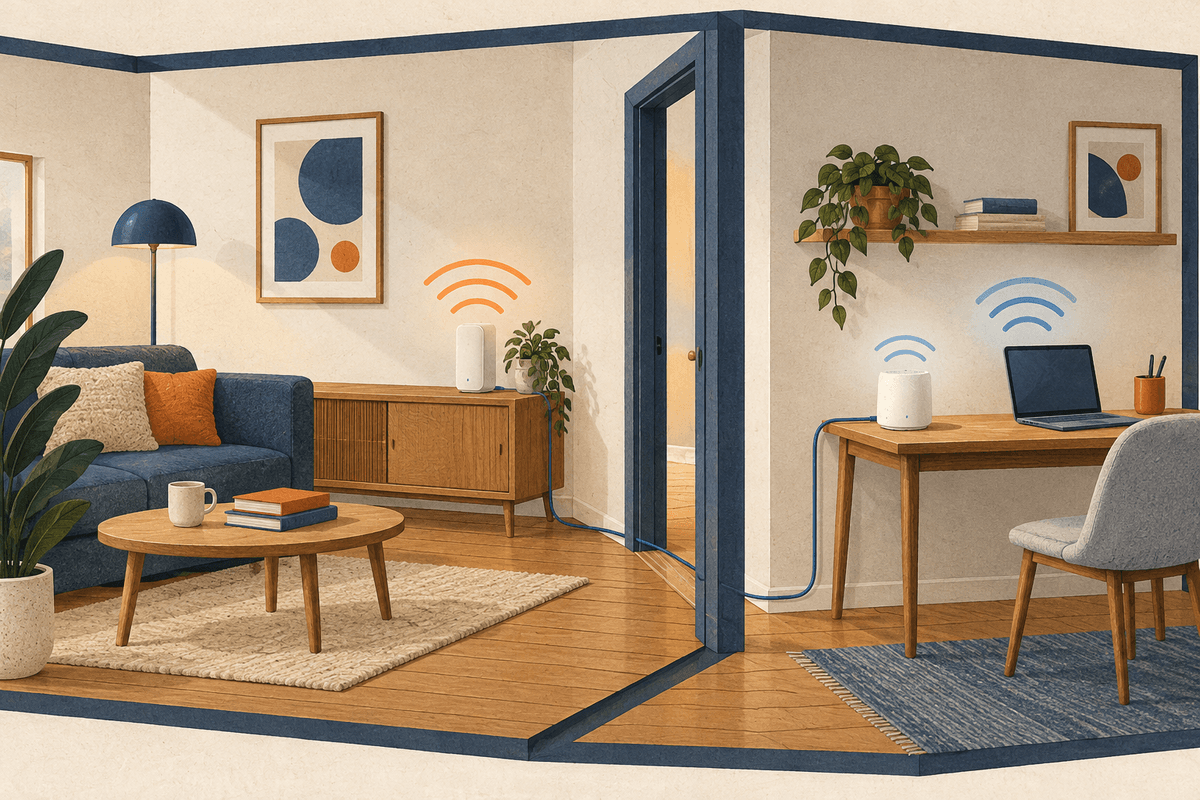
The laptop is beside the upstairs mesh node. Its Wi-Fi icon looks healthy, yet a video call keeps breaking up. The next connection to check is the one from the upstairs node to the main router. Google treats that connection as a separate mesh test because a weak link between nodes can constrain every device attached to one of them.1
Work along the route from the internet connection to the main router, then through the mesh to the laptop. The procedure below is a way to narrow the search. None of the example outcomes is a measurement from a tested home.
Establish what reaches the main router
Start with the router’s own internet test, if its app provides one. On Google systems, this measures download and upload from the router or primary Wifi point. It does not measure the laptop’s wireless connection upstairs.2 Keep that result separate from any browser test run on the laptop.
Next, connect a computer to a supported LAN port on the main router with a known-working Ethernet cable. Disable Wi-Fi on that computer so the test follows the cable. Use the same test service for the later room comparisons and note the time, download, upload and whether the troublesome application behaves differently. These are comparison conditions, not a pass mark for every home.
Pause discretionary downloads during the comparison. Google lists competing traffic, Ethernet cables and upstream equipment among causes of slow performance.3 If both the router test and the computer’s wired test are disappointing, investigate that common part of the route before relocating satellites. This does not identify a specific upstream fault.
Give the wired result its own checks
A wired test is only useful if you know what went into it. Check the computer adapter, the selected router port and any intermediate switch. Look for the negotiated Ethernet speed where the equipment exposes it, then compare that with the specifications for the exact models. Google warns that a slower cable connection or upstream component can restrict the whole path.3
If the wired computer is slow while the router’s internal result is healthy, substitute a known-working patch lead or another supported LAN port. Keep the rest unchanged. A result that follows a cable or adapter is more informative than replacing the entire mesh system.
Leave the modem and main router connected in their existing arrangement for this baseline. There is no need to expose the computer directly to the internet or change the network’s operating mode to make the comparison. Record the current topology before any later wiring change.
Follow the laptop, then identify its node
Repeat a wireless test on the same laptop close to the main router and at the troublesome desk. Confirm the connected node in the mesh app if that information is available. Read the current association rather than assuming that proximity selects the intended node.
Google notes that client capabilities, distance, obstacles and interference affect Wi-Fi speed.3 A second device tested at the same desk can help establish whether the symptom follows the laptop or the location. This is a useful branch in the diagnosis, not proof that either device is faulty.
If your operating system exposes a Wi-Fi link rate, treat it as a connection detail. Intel’s protocol tables describe theoretical rates that depend on channel width and antenna configuration.4 Those figures are not a promised internet download result. Also avoid judging the laptop against the router’s combined marketing speed.
Before changing radio settings, save the existing configuration. Apple recommends current firmware, consistent network settings and enabled WMM; disabling WMM can affect performance and reliability.5 Keep network security enabled during these comparisons.5
Test the connection the signal icon leaves out
Run the manufacturer’s mesh diagnostic or inspect the satellite’s uplink status. Google’s mesh test measures the main router’s connection to additional points, separately from its internet test.12 In another vendor’s app, look for the documented equivalent rather than assuming the menu names match.
Use the following outcomes as directions for the next comparison. They are diagnostic inferences based on the different test paths, not automatic fault codes.2316
| Observation | Next comparison | What remains uncertain |
|---|---|---|
| Main-router wired test is also slow | Check cable, adapter and upstream link | Which shared component is limiting it |
| Main-router Wi-Fi works, satellite area struggles | Check mesh uplink and the associated node | Client interference can still contribute |
| One client struggles in both locations | Compare another device under the same conditions | Its software or adapter needs separate diagnosis |
| Ethernet into the satellite is slow too | Confirm whether the satellite itself has wireless backhaul | The cable to the laptop does not bypass that uplink |
| App reports wireless after backhaul cabling | Check ports, topology and direct node-to-node cabling | Cable presence alone does not confirm activation |
Connecting the laptop to a satellite’s Ethernet port changes the last connection to the laptop. To remove the satellite’s wireless uplink from the comparison, the nodes themselves need a supported wired backhaul arrangement.76
Move the satellite toward a usable connection
For a wireless uplink, try an open location closer to the main router or a working intermediate node. Google recommends placing a point between the weak-coverage area and the nearest mesh point, with fewer obstructions between them.1 A shelf outside the back bedroom can therefore be a better test location than the back corner where the laptop needs coverage.
Change the position of one node, allow it to reconnect, then repeat the mesh check and the desk test. Google’s placement guide recommends retesting after a move and notes that the best position depends on the home’s layout and construction.8 Keep a location only if both comparisons support it. A better mesh rating alone leaves the desk connection untested.
There is no universal room spacing or improvement percentage to apply here. If a practical position cannot provide both a usable uplink and useful room coverage, investigate supported wired backhaul before buying another node.86
Check the wiring rules before running cable
Look up the exact model, firmware, operating mode and permitted ports. Google’s Nest Wifi points have no Ethernet ports; Nest Wifi routers and Nest Wifi Pro are different products. Nest Wifi Pro also cannot join a mesh with the older Nest Wifi or Google Wifi units.7
For Deco in Router mode, satellites belong downstream of the main Deco’s LAN port, directly or through a switch. Access Point mode permits different wiring. TP-Link says to add the units to the same mesh first, then connect Ethernet and confirm the connection type in the app.6 Do not copy an AP-mode diagram into a routed installation.
ASUS distinguishes system-wide Ethernet Backhaul Mode from per-node Backhaul Connection Priority. Its all-wired mode requires the nodes to have wired uplinks; otherwise nodes may lose connectivity. Use the model’s documented options for a mixed wired and wireless system.9
If a switch is involved and activation fails, a temporary direct cable between compatible nodes is a useful comparison recommended by TP-Link.6 Route it safely and avoid adding redundant cable paths. Confirm the app reports the expected uplink before repeating the original test. Keep the wiring only when the recorded result justifies it; save a factory reset for a later, model-specific diagnosis.
References
Footnotes
-
Google Home and Nest Help — What a mesh test measures and how to improve a weak node connection: https://support.google.com/googlehome/answer/7620337?hl=en ↩ ↩2 ↩3 ↩4
-
Google Home and Nest Help — Scope of the router’s internet download and upload test: https://support.google.com/googlehome/answer/6246634?hl=en ↩ ↩2 ↩3
-
Google Home and Nest Help — Client limitations, competing traffic, cables and upstream equipment in slow connections: https://support.google.com/googlehome/answer/6246489?hl=en ↩ ↩2 ↩3 ↩4
-
Intel Support — Theoretical Wi-Fi rates and channel width/antenna configuration; a legacy reference, not a current product comparison: https://www.intel.com/content/www/us/en/support/articles/000005725/wireless/legacy-intel-wireless-products.html ↩
-
Apple Support — Configuration backup, firmware, security and WMM recommendations: https://support.apple.com/en-us/102766 ↩ ↩2
-
TP-Link Support — Deco Ethernet backhaul, operating-mode wiring and switch troubleshooting: https://www.tp-link.com/us/support/faq/1794/ ↩ ↩2 ↩3 ↩4 ↩5
-
Google Home and Nest Help — Ethernet-capable products, compatibility and supported wiring diagrams: https://support.google.com/googlehome/answer/7215624?hl=en ↩ ↩2
-
Google Home and Nest Help — Placement, obstructions and retesting after moving a point: https://support.google.com/googlehome/answer/7183150?hl=en ↩ ↩2
-
ASUS Support — Ethernet Backhaul Mode, node priorities and mixed deployments: https://www.asus.com/support/faq/1044184/ ↩

PHP’s disclosure dispute and the responsibility to users
Rejecting a social contract does not resolve a publisher’s responsibility to users still waiting for a usable fix.

Your browser extension wants every site: how to limit its access
Understand extension warnings, restrict website access in Chrome, Edge and Firefox, and check private browsing and sync settings.

An AI answer cites your PDF. Check the sentence before you reuse it
Trace PDF citations to the original page, check quotes and table cells, and separate a useful source pointer from support for an answer.
Subscribe via RSS
Copy the feed address below and add it to your RSS reader.
Add this address to your RSS reader to receive new articles.